A couple of years ago, one of our clients asked a question I hear all the time: "Can we just stream on YouTube and call it a day?" The short answer is yes. The longer answer is that there is a lot more to YouTube livestreams than just hitting a button, and the difference between a livestream that grows your channel and one that nobody watches comes down to understanding how the platform actually works.
YouTube live has become one of the most powerful tools for creators, businesses, and organizations to broadcast live content to viewers around the world. Whether you are a creator doing quick updates for your community, a company running a product launch, or an organization streaming live events to a wider audience, YouTube gives you the ability to reach people on every device in real time.
This guide covers everything, how to set up your first YouTube live stream, how to find live content on mobile devices or your computer, the subscriber requirements, monetization features like super chat and channel memberships, and the tips that actually make a difference when you are trying to keep your audience engaged.
Setting up a YouTube live stream is straightforward once you know where everything lives. There are several ways to go live depending on what device you are using and what kind of broadcast you want to create.
The most common way to stream on YouTube is through YouTube Studio on your computer. Here is how to get started:
First, sign in to your YouTube account and go to YouTube Studio. You can get there by tapping your profile icon in the top right corner and selecting YouTube Studio from the dropdown. Once inside, look at the left sidebar for the camera icon with a plus sign, tap that, then select "Go Live."
This takes you to the live control room, which is where you manage everything about your broadcast. The live control room lets you set your stream title, description, thumbnail, privacy level, and configure settings before you go live.
From the live control room you have two main options. You can use your webcam to go live instantly, YouTube will use your computer's built-in webcam and microphone, and you can be broadcasting within seconds. This works for quick updates, casual conversations with your community, or any situation where you do not need a complex setup.
The second option is streaming software. This is what we recommend for creators who want their broadcast to look professional. Software like OBS, Wirecast, or vMix connects to YouTube through a stream key from the live control room, giving you the ability to use external cameras, add graphics, switch between multiple camera angles, and create videos that look polished rather than amateur.
Mobile live streaming has become incredibly popular, and the YouTube app makes it easy to go live from your phone. Open the YouTube app, tap the plus icon at the bottom of the screen, and select "Go Live." The YouTube app will walk you through setting a title and description for your mobile live stream.
There are a few things to note about going live from the YouTube app on mobile devices. Your channel needs at least 50 subscribers to go live from the YouTube app on a mobile device. If you have fewer than 50 subscribers, you can still go live from your computer using a webcam or streaming software, but the mobile live stream feature on your phone will not be available yet.
Mobile live streaming through the YouTube app is great for on-the-go content, behind-the-scenes footage, quick updates, and any situation where setting up a full production is not practical. The quality from modern phone cameras is quite good, and viewers on mobile devices will have a seamless experience watching your broadcast.
One tip I always share with creators: if you are going to go live from your phone, invest in a small tripod or phone mount. Handheld footage gets shaky and drives viewers away. A stable shot from your phone looks significantly better than a shaky handheld broadcast from an expensive camera.
For professional live events, corporate broadcasts, and any situation where production quality matters, you will want to use an encoder. An encoder takes your video and audio signals and sends them to YouTube through an RTMP connection.
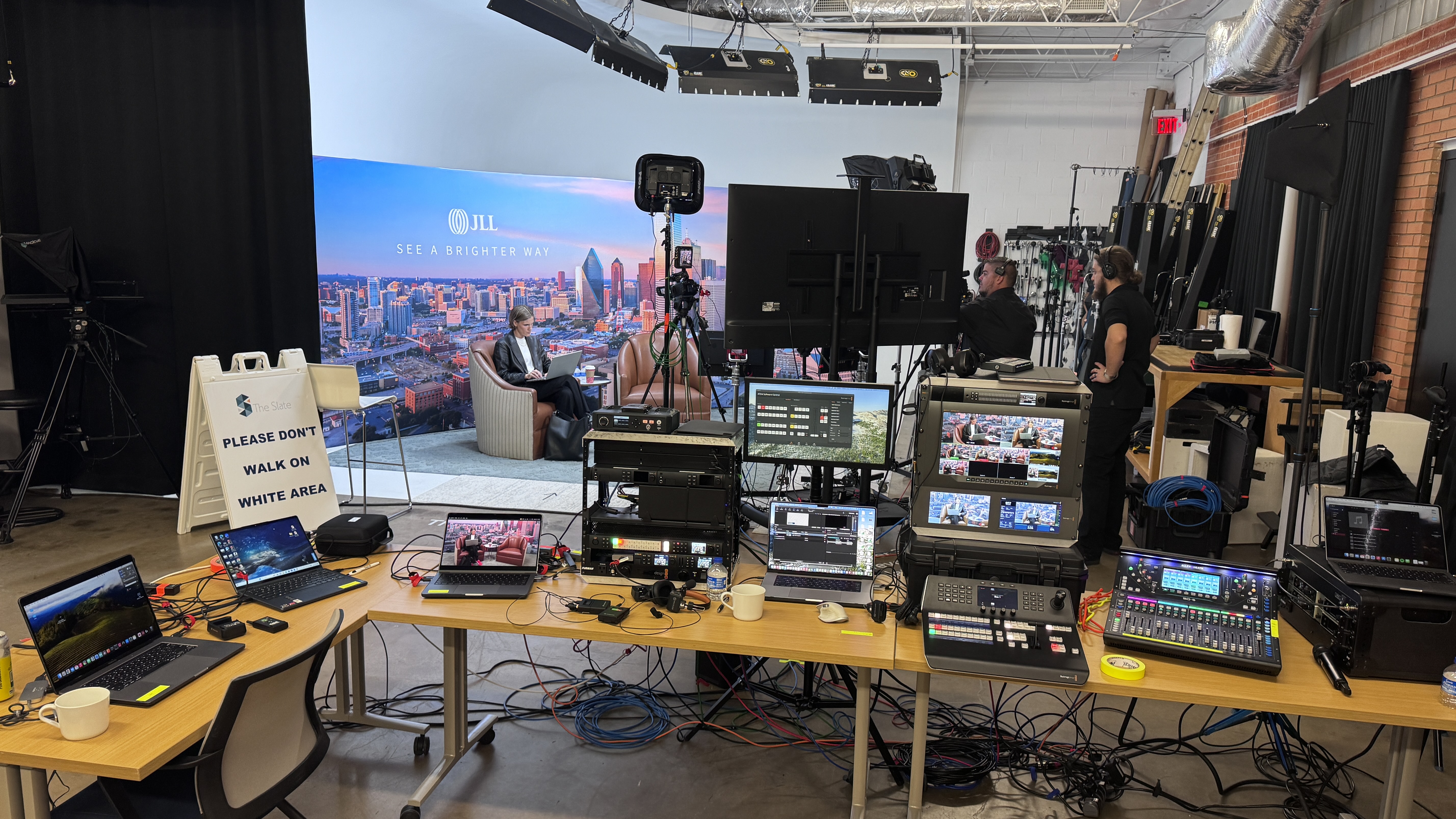
This is how we handle it for our clients. We use hardware encoders and video switchers that let us run multiple cameras, integrate presentation graphics, add branded overlays, and create a broadcast that looks like a produced show. The stream key from YouTube Studio's live control room connects our production equipment to the platform, and everything we produce goes out live to the YouTube channel.
Using an encoder gives you the most control over your broadcast quality. You can set your resolution, bitrate, and frame rate to match what YouTube recommends. For most live content, we stream at 1080p with a bitrate between 4500 and 9000 kbps, which gives viewers a clean image on any device from a computer screen to a phone.

This is one of the most common questions I get, and the answer has changed over the years. Here is where things currently stand.
You do not need 1000 subscribers to go live on YouTube from a computer. If you have a verified YouTube account, you can go live using a webcam or streaming software from your computer regardless of your subscriber count. YouTube removed the 1000-subscriber requirement for desktop live streaming, which opened up the feature to smaller creators and new channels.
However, to go live from the YouTube app on mobile devices, you do need at least 50 subscribers. This is a relatively low threshold, but it is worth knowing if you are planning to do a mobile live stream from your phone.
The 1000-subscriber number that people often reference is actually tied to the YouTube Partner Program, which is the monetization program. To enable monetization on your live streams, including features like super chat, super stickers, and channel memberships, you need to meet the YouTube Partner Program requirements. Those requirements include having at least 1000 subscribers and either 4000 hours of watch time in the past 12 months or 10 million YouTube Shorts views in the past 90 days.
Even without hitting the YouTube Partner Program threshold, you can still create engaging live content. You can go live from your computer, interact with viewers through live chat, schedule upcoming live streams, and build your community. Many creators use live streaming as a strategy to grow their subscriber count because live content tends to generate more engagement than pre-recorded videos.
The live chat feature alone is incredibly valuable for building a community. When viewers can post chat messages and get responses from you in real time, it helps you connect with your audience and fosters a sense of community that recorded videos simply cannot match. You can answer questions, respond to comments, and make your audience feel like they are part of the conversation rather than just watching a screen.
Whether you want to watch live content from your favorite creators or discover new channels, YouTube has several ways to find live streams happening right now.
The simplest way to find YouTube livestreams is through search. Go to YouTube and type in a topic you are interested in. After the search results appear, tap the filters option and select "Live" under the type filter. This will show you only channels that are currently broadcasting live content on that topic.
This is a powerful feature for viewers who want to find live content on specific subjects. Whether you are looking for gaming streams, music performances, news broadcasts, educational sessions, or any other type of live content, the search filter will narrow your results to what is happening right now.

On the YouTube app for mobile devices, you can find live content in a few different ways. The homepage will sometimes feature live streams from channels you subscribe to or from creators that YouTube's algorithm thinks you might enjoy. You can also look for the red "LIVE" badge on video thumbnails, which indicates that the content is a live broadcast rather than a recorded video.
If you tap on the Explore or Trending section in the YouTube app, you may also find popular live streams that are currently attracting a large number of viewers. YouTube tends to promote live content that is generating strong engagement, so trending live streams often appear alongside popular uploaded videos.
If you want to discover random live streams across YouTube, there are a couple of approaches. You can use the search method described above with broad topics and the Live filter. You can also visit youtube.com/live on your computer, which shows a curated selection of live content that is currently broadcasting across the platform.
Another way to find live content is through community posts and notifications. When creators you follow schedule upcoming live streams, YouTube can send you a notification so you know when to watch. You can also browse the community tab on channels you follow to see if they have announced any upcoming live streams or live events.
Going live is one thing. Going live in a way that actually grows your channel and keeps viewers coming back is another. Here are the tips and best practices that make a real difference.
Your stream title is the first thing potential viewers see. Be specific. "Live Stream" tells nobody anything. "Building a Custom PC Live - Answering Your Questions" tells viewers exactly what to expect and gives them a reason to tap in.
Your description should include relevant keywords that help your stream appear in search results. Think about what someone would type into YouTube search to find your type of content and make sure those terms appear naturally. This helps with discoverability both while you are live and after the stream ends, since YouTube keeps the recording as a video on your channel.
Many creators go live with the default thumbnail, which is usually a random frame from the webcam or a blank screen. Create a custom thumbnail before you go live that clearly communicates what the stream is about. Include text, your face if applicable, and branding consistent with your other videos on the channel.
A strong thumbnail can significantly increase the number of viewers who tap on your stream when it appears in their feed or search results. It is one of the easiest ways to improve your live stream metrics without changing the content itself.
YouTube lets you schedule upcoming live streams in advance through the live control room in YouTube Studio. When you schedule a stream, it creates a watch page that users can set reminders on. This is incredibly valuable because it gives your audience time to plan around your broadcast.
Scheduled streams also appear on your channel page under the upcoming live streams section, which helps regular viewers and subscribers know when to come back. If you are streaming on a regular schedule, weekly, monthly, or around specific live events consistency helps build an audience that knows when to show up.
Scheduled streams also trigger notifications to your subscribers, which drives initial viewership. The first few minutes of a live stream are critical for the algorithm, so having viewers show up right when you go live signals to YouTube that your content is worth promoting.
Test everything before you go live. This applies whether you are streaming from a webcam on your computer, the YouTube app on your phone, or through professional encoding equipment.
In YouTube Studio you can do a private test stream that only you can see. Check your video quality, audio levels, and internet connection. Make sure your stream key is working and your encoder settings are correct.
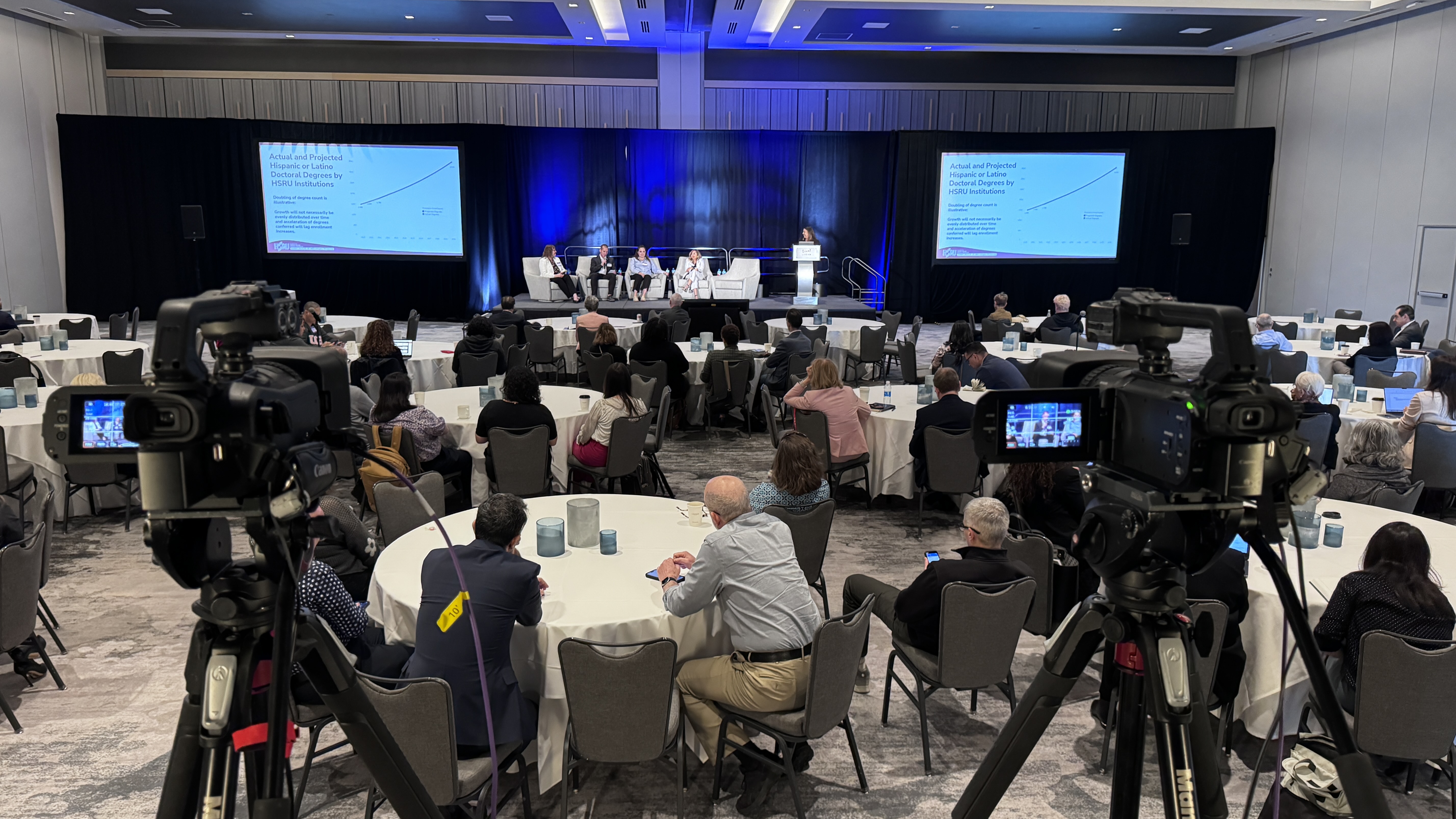
We do extensive testing before every professional broadcast. For a recent conference we streamed in Frisco, we had an entire day dedicated to setup and testing. That testing time caught issues with the venue's network that would have killed the stream on day one. Even for a simple setup, spending fifteen minutes testing before you go live can save you from embarrassing problems in front of your audience.
The biggest advantage of live content over recorded videos is the real time interaction with your viewers. But you have to actively work to keep your audience engaged throughout the broadcast. YouTube Live offers various tools to enhance live streams, including live chat moderation and analytics, giving creators more ways to engage their audience and improve the live experience.
Live chat is the heartbeat of any YouTube live stream. It is where viewers post chat messages, ask questions, share reactions, and interact with you and each other. As a creator, acknowledging chat messages by name and responding to them on screen makes viewers feel seen and encourages more people to participate.
Read chat messages out loud and answer questions as they come in. This creates a conversational dynamic that keeps people watching. Audience retention on live streams is higher when the creator is actively engaging with chat versus just talking at the camera.
You can also use polls and pinned messages to guide the conversation. Pinning a message at the top of live chat gives viewers something specific to respond to, which is especially helpful during slower moments in your broadcast.
As your live streams grow, you will need chat moderation. YouTube gives you tools to manage live chat, including the ability to assign moderators, set slow mode to limit how fast users can post messages, block specific words, and remove disruptive users.
Having trusted moderators lets you focus on content while they keep chat productive. This becomes essential once your streams regularly attract hundreds of viewers. A well-moderated chat creates a better experience and encourages more people to interact rather than just watch silently.
If you are running a longer broadcast's a multi-hour gaming session, an all-day conference, or a marathon fundraiser's plan for engagement across the entire stream. Viewers come and go throughout long sessions, so create natural entry points where new viewers can quickly understand what is happening.
Recap what you have covered periodically. Announce what is coming up next. Use segments or chapters to give structure to the broadcast. These tips help both live viewers and people who watch the recording later.
For the conferences we produce, we create holding slides and countdown timers between sessions that tell viewers when the next talk starts. We have produced overnight recap videos that play the next morning, giving late arrivals a fun way to catch up. That attention to the viewer experience keeps your audience retention numbers strong.
Once you meet the YouTube Partner Program requirements and enable monetization, live streaming opens up several revenue streams that are not available with regular uploaded videos.
Super chat lets viewers pay to have their chat messages highlighted during your live stream. These messages appear in a different color and stay pinned at the top of live chat depending on the amount paid. Super stickers work similarly but use animated images instead of text.
Super chat and super stickers can be a significant revenue source for creators with an engaged community. Viewers use them to get noticed, show support, and have fun during live streams. The more you acknowledge super chat messages, the more likely other viewers are to send them.
To enable super chat and super stickers, go to YouTube Studio, tap Monetization in the left sidebar, and make sure the feature is turned on for your live content. Note that availability varies by region, so not all viewers around the world will have access.
Channel memberships allow viewers to support your channel with a monthly subscription in exchange for perks like custom badges, exclusive emojis, members-only posts, and access to members-only live streams. This creates a recurring revenue stream and builds a deeper connection with your most dedicated community members.
Gifted memberships are a newer feature that lets viewers purchase channel memberships for other users in the live chat. This is a fun way for supporters to share the love and bring new members into your community. When someone receives a gifted membership during a live stream, it creates a moment of excitement in chat that encourages more participation.
Channel memberships work especially well when combined with live streaming because you can offer members-only streams, early access to content, or exclusive Q&A sessions that give people a real reason to join.
If you are in the YouTube Partner Program, you can run ads during your live streams. Mid-roll ads can be triggered manually during natural breaks in your broadcast. Pre-roll ads play when viewers first tap into your stream.
The key with ads on live content is to use them strategically. Running ads during a natural break between sessions at a conference or between segments of a talk show, feels natural. Interrupting an important moment to run ads will frustrate viewers and hurt audience retention.
You can manage ad settings from the live control room in YouTube Studio, giving you real time control over when ads run. Some creators announce a quick ad break, which works well because it feels transparent and viewers appreciate the honesty.
Beyond the basics, YouTube offers several advanced features that can take your live streams to the next level.
The YouTube Live Streaming API allows creators to manage live events, including scheduling and linking streams. The API uses resources such as liveBroadcast, liveStream, and cuepoint to efficiently create, manage, and retrieve information about live events.
Live redirect lets you redirect viewers from one live stream to another when your broadcast ends. Instead of viewers seeing a static end screen, live redirect sends them directly to another creator's livestream or to your next scheduled broadcast.
This feature is great for collaborative live events with multiple creators. Live redirect creates a seamless experience where viewers flow from one broadcast to the next without having to search for the next stream. Many creators use live redirect for community events, charity streams, and collaborative broadcasts, it is also a growth tool that helps smaller creators tap into larger audiences.
YouTube premieres let you take a pre-recorded video and premiere it as if it were a live event. The video plays at a scheduled time with live chat running alongside it, creating a shared viewing experience. This is different from a traditional live stream where content is created in real time.
Premieres are useful when you want the engagement of a live event but need the production quality that comes with pre-recorded videos. Many creators use premieres for polished videos like music videos or heavily edited content while saving true live streams for interactive sessions and casual broadcasts.
YouTube Studio provides detailed live stream metrics that help you understand how your broadcasts are performing. You can see peak concurrent viewers, total watch time, audience retention during the stream, chat activity, and revenue from super chat, super stickers, and ads.
Pay attention to your live stream metrics after each broadcast. Look at when viewers joined and dropped off, and which moments generated the most chat activity. These patterns tell you what is working and what needs to change.
Audience retention is particularly important. If you see a big drop-off at a specific point, figure out what happened. Did the content get slow? Did you stop engaging with chat? Each stream is an opportunity to learn and improve for the next one.
You do not need a professional production crew to create good-looking live content on YouTube. But a few upgrades to your setup can dramatically improve the viewer experience.

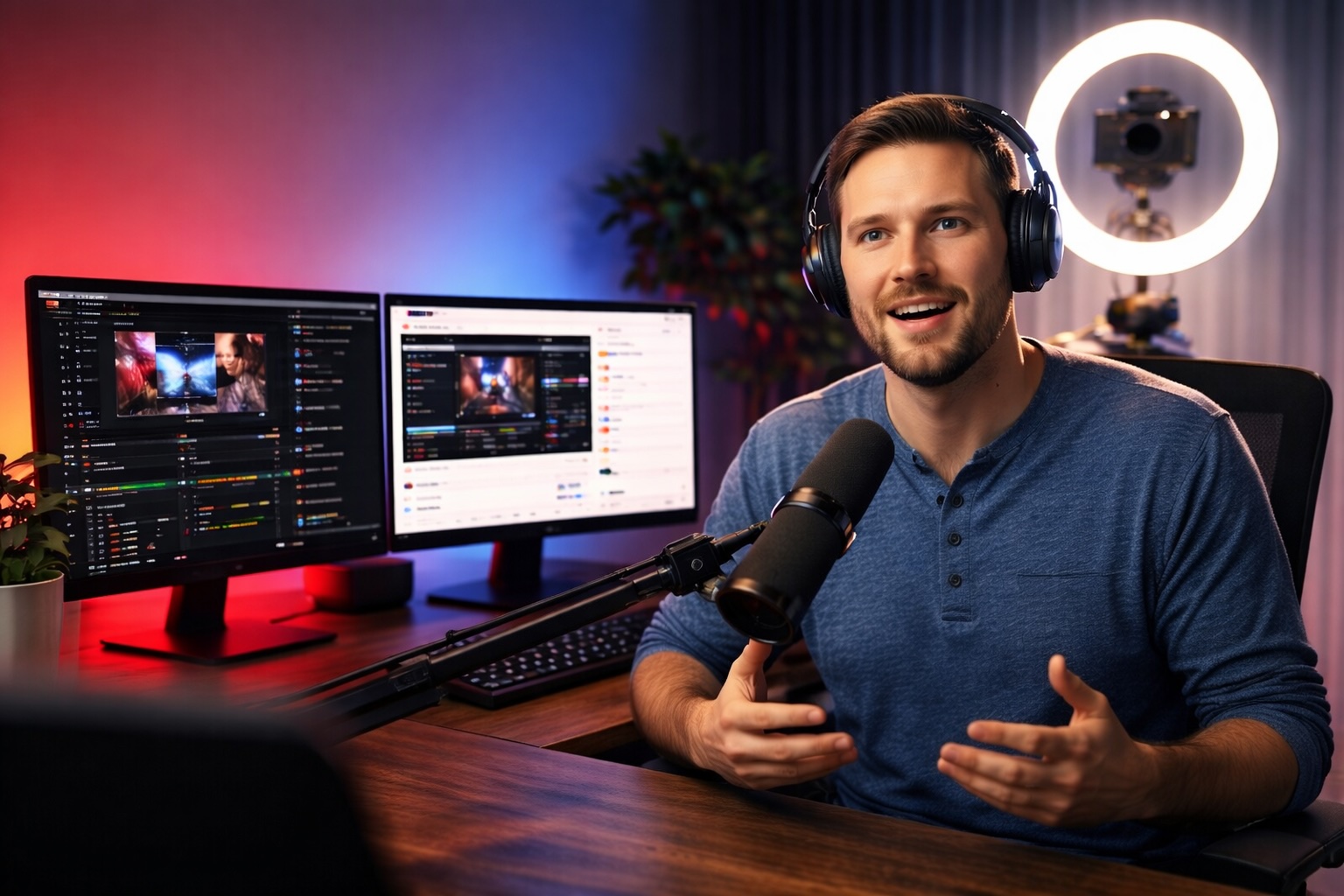
Before you spend money on a better webcam or camera, fix your lighting. Good lighting will make a cheap webcam look decent, while bad lighting will make an expensive camera look terrible. Position a light source in front of you, not behind you. Even a simple ring light or desk lamp pointed at your face will improve your video quality on screen significantly.
Viewers will tolerate mediocre video on screen. They will not tolerate bad audio. If you are streaming from a computer, invest in an external microphone rather than using your laptop's built-in mic. A USB condenser microphone for under a hundred dollars will sound dramatically better than any built-in mic on any device.
For professional live events that we produce, audio is always our number one priority. We bring Sennheiser wireless microphones, Allen and Heath audio mixers, and professional speaker systems. You do not need that level of equipment for a webcam stream, but the principle is the same: good audio keeps people watching, bad audio makes them leave.
Your internet connection is the foundation of your live stream. If your connection is unstable, your stream will buffer, drop frames, or go offline. Test your upload speed before you go live. YouTube recommends at least 3 Mbps for streaming at 720p and at least 9 Mbps for 1080p at 60fps.
Use a wired ethernet connection on your computer whenever possible. Wifi can fluctuate and cause dropped frames during your broadcast. If you must use wifi, make sure nobody else on your network is consuming heavy bandwidth during your stream sessions.
For our professional broadcasts, we never rely on a single connection. We bond venue ethernet with multiple 4G LTE modems to create one redundant link. Even for a simple webcam stream from home, having a backup mobile hotspot on your phone can save your broadcast if your primary internet drops.
Position your webcam or camera at eye level on your device. Looking up at or down at the camera creates an unflattering angle. Your face should be well-lit and centered in the frame with some headroom above.
If you are using multiple cameras for a more produced broadcast, think about what each angle adds to the viewer experience. A wide shot establishes the scene. A tight shot creates intimacy. A screen capture shows slides or demos. Switching between these angles keeps the broadcast dynamic and prevents viewers from getting bored watching a single static shot.
Live streaming is one of the most effective tools for channel growth on YouTube. Here is why and how to use it strategically.
YouTube's algorithm rewards engagement, and live streams naturally generate more of it than uploaded videos. Viewers spend more time watching, post more chat messages, and interact more actively during live content. This sends strong signals to YouTube that your content is valuable, leading to more recommendations and a wider audience discovering your channel.
The key is consistency. Creators who stream on a regular schedule build audiences that show up reliably. If viewers know you go live every Tuesday at 7 PM, they will put it on their calendar. That consistent viewership at the start of each stream tells YouTube's algorithm that your content generates immediate interest.
Every live stream you do is content that can be repurposed. After your broadcast ends, the recording stays on your YouTube channel as a regular video. But you can go further, clip the best moments, create highlight reels, pull out individual Q&A segments, and post them as separate videos on your channel.
This is exactly what we do for our clients after live events. We trim and clip individual sessions, create recap videos, and upload the final files so the client has a library of content from a single event. One two-hour stream can easily generate five or six shorter videos that each serve as standalone content on your channel.
Live streaming creates community in a way that no other format can. When viewers interact in live chat, answer questions together, and share reactions in real time, they form a connection to your channel that goes beyond watching videos.
Use community posts in YouTube Studio to promote upcoming live streams, ask your audience what they want you to cover, and recap past streams. This cycle of engagement keeps people invested in your channel between broadcasts.
Encourage viewers to subscribe and tap the notification bell for your channel so they know when you go live. Remind them during your streams naturally a quick mention at the beginning and a reminder near the end. The more subscribers you have with notifications enabled, the stronger your initial viewer count will be when you start each broadcast, which feeds the algorithm and helps you reach an even wider audience.
There is a point where DIY live streaming hits a ceiling. If you are streaming a corporate town hall, a multi-day conference, a product launch to thousands of viewers, or any live event where the broadcast quality represents your brand, it is time to bring in professionals.
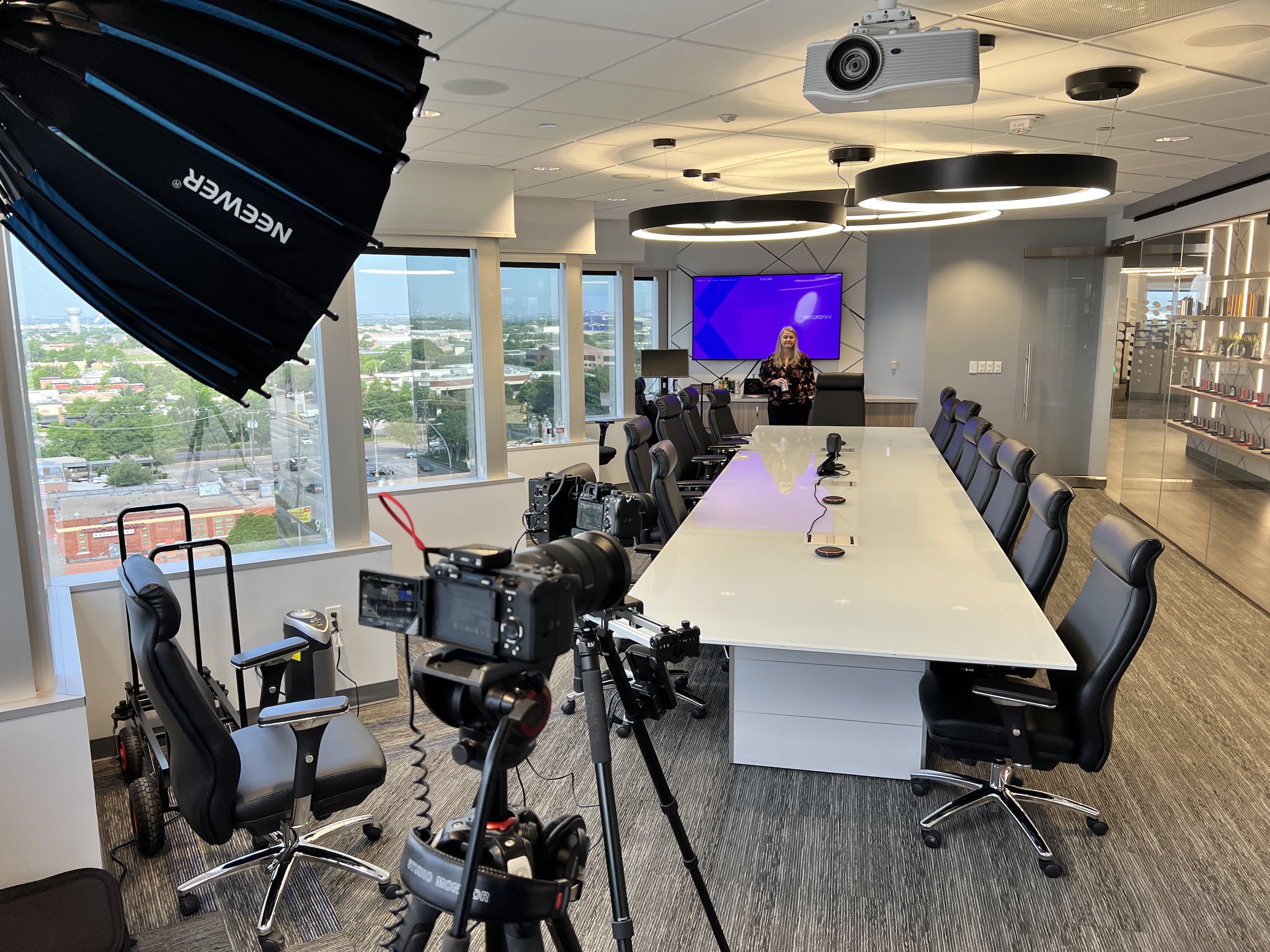
Professional production gives you multiple cameras, broadcast-quality audio, branded graphics and lower thirds, redundant internet connections, real time switching between angles, and a crew that has handled hundreds of live events.
We have produced YouTube live streams for conferences, corporate events, graduations, and organizational broadcasts across Dallas Fort Worth and beyond. The difference between a professional broadcast and a DIY setup is immediately obvious to viewers and it determines whether they stay and watch or tap away after thirty seconds.
If you are planning a YouTube live stream for your next event, reach out to DFW LiveStream. We will walk you through the options, build a production plan around your budget, and make sure your live content represents your organization the way it should.